We remain fully operational. Our teams are working around the clock to ensure your deliveries continue safely.

下载应用程序


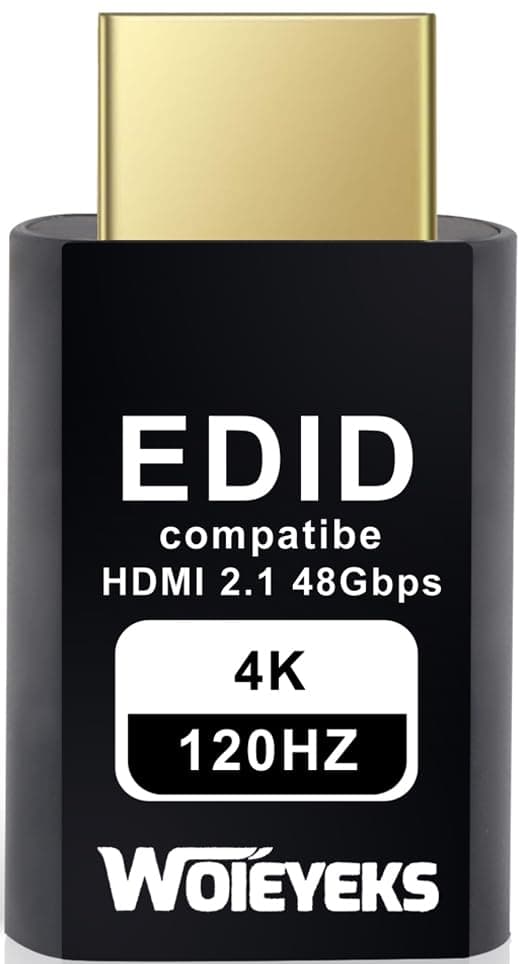
🚀 Elevate your remote setup with 4K@120Hz virtual power — no screen, no limits!
The Woieyeks 4K 120Hz HDMI 2.1 Dummy Plug is a gold-plated virtual display emulator that enables GPUs to run headless at ultra-high resolutions up to 3840x2160@120Hz. Compatible with Windows, Mac, and Linux, it requires no drivers and supports plug & play operation. Ideal for remote desktop, cryptocurrency mining, and VR streaming, it offers a cost-effective, energy-saving solution to simulate real monitors and unlock full GPU performance without a physical display.
| ASIN | B0BX3YKM1T |
| Best Sellers Rank | #60 in DVI-HDMI Adapters |
| Brand | Woieyeks |
| Color | 4K-120Hz Emulator |
| Compatible Devices | PC, Virtual Reality Headset |
| Connector Type | HDMI |
| Customer Reviews | 4.3 4.3 out of 5 stars (75) |
| Finish | Hdmi |
| Item Dimensions | 1.5 x 0.78 x 0.4 inches |
| Item Weight | 0.01 Kilograms |
| Manufacturer | Woieyeks |
| Model Number | 4K 120Hz HDMI 2.1 Dummy Plug |
| Number of Items | 1 |
| Number of Ports | 2 |
| Package Quantity | 1 |
| Power Plug Type | No Plug |
| Specific Uses For Product | [PC, Cryptocurrency Mining, Remote Desktop] |
| Unit Count | 1.0 Count |
| Warranty Description | 1 |
| Warranty Type | 2 years unconditional |
S**S
Works Great
Works as advertise. Lets you operate your laptop in clamshell mode.
R**.
4k120hz HDR works, but with an adapter and some work.
So I got this to work for Moonlight purposes and another user review did a good job of spelling it out. I did manage to enable HDR through Custom Resolution Utility (CRU) and EDWriter. However, I couldn't enable it without using a DP 1.4 to HDMI 2.1 adapter (I used the Cable Matters version if it matters). A small tutorial without needing to use a 4k120hz HDR TV to dump settings would go as follows (screenshots included). 0) Acquire CRU and EDIDWriter. ToastyX is the author of both and are easily located through google. 1) With the dummy plug connected to a HDMI 2.1 port, fire up CRU and make sure the dummy plug is selected (LL2160 - WOIEYEK 4K120 for me). 2) Under extension blocks, select "CTA-861..." and click the edit button below that. 3) Under Data blocks, you will have to add "Colorimetry" and select "BT.2020 RGB" and "DCI-P3", click "OK" to save and exit the Colorimetry menu. 4) Back under the Data blocks section, you will next edit "HDR static metadata", within that make sure the "Traditional Gamma - HDR" is ticked on under the Transfer Functions group. Click OK to save and exit that view. Click OK in the Extension block menu to return to the main view of CRU. 5) In the bottom left, select "Export" and give this EDID profile a name. I used "Woieyek4K120HDR.bin" for mine. Once the file is saved to a known location, you can exit out of CRU. 6) Open up EDWriter and make sure the dummy plug is selected (LL2160 - WOIEYEK 4K120 for me). 7) First select "Read EDID" and then select "Save file...". This is a backup in case something goes wrong with the dummy plug. I used "Woieyek4K120.bin" as the file name. 8) With the backup created we can now flash the dummy plug with the new bin file. First, select "Load File..." and select the modified bin file (Woieyek4K120HDR.bin for me). Once the file is loaded in, you can now click "Write EDID" It will ask if you are sure, and simply confirm that you want to flash it. In the event something goes wrong, you can use your backed-up bin file to flash it back to its original state. 9) Now with the DP 1.4 to HDMI 2.1 adapter connect it to another available displayport out on your GPU. Add the dummy plug. 10) Restart windows, or restart your video drivers (CRU gives you an exe to do this with restart64.exe) 11) Confirm you can achieve 4K 120hz with HDR enabled. Hopefully, this helps! It's made streaming high resolutions to my moonlight devices with high framerates and HDR possible without taking up other active monitors.
J**T
A+ Works Just as Described
Works exactly as described by listing. Connected to RTX 3080 Ti, this adapter enables a host of 120hz streaming resolutions with no additional configuration. I've successfully used 1080p, 1440p, 1600p, and 2160p all at 120hz. Perfect for Parsec and Moonlight with M2 Macbook Pro. Only disappointing thing is that HDR is not supported by default. This may be possible to enable with a utility, but I have yet to try.
R**K
Successfully accepts full HDMI 2.1 signal
Works as expected. It can accept 4K 120Hz as advertised
R**R
Good
Good
W**A
Must have for Steam Link!
I have a rather robust home network and while I enjoy playing on my gaming PC, sometimes I just like to be a couch potato. I couch game with Steam Link on a Samsung S23 Ultra and Gamesir G8. The issue with Steam Link is that it needs a monitor to display the game before streaming it to your device. This dummy plug lets me turn off both of my monitors and stream to my phone without any issues. I never have to worry about screen burn while being a lazy gamer!
A**Y
Used for Govee Gaming Lights on a Wacom Cintiq
I have a Wacom Cintiq Pro 27 monitor that I use for work. I wanted to use Govee lights to backlight it so when I'm working at night I have a nice ambient matching light setup. Unfortunately, plugging the Cintiq directly into the Govee system didn't work. My brother recommended this dongle, and now it works perfectly!
S**L
4K 120HZ works only after
The max this plug was showing was 4K 60HZ. Was not able to get 4K 120HZ on it's own. I had to try a workaround. My trick was this: 1) Plug the Adapter from the GPU to the Monitor, which has to support 4k 120HZ. 2) In the Windows display settings, make sure that it is set to 4K resolution at 120HZ refresh rate. 3) Unplug the HDMI cable from the adapter and replace it with the HDMI dummy plug. 4) Go to the Windows display settings and see if you have can now choose 120Hz.
N**N
This dongle by default is good if you want something to plug and play. However it can be even better with some tweaks and additional cable adapters I was able to tweak this dongle to mimic my LG C2 TV EDID and add additional resolution to fit the full frame of my Samsung Tab s9 Tablet (2560x1600p). I was also able to add my PC monitor ultrawide resolution, the 3440x1440p. In order to do this you will need 2 software's, CRU & EDID Writer. These can be found by googling them. You will need a video card that supports HDMI 2.1 1)Plug in your PC into your monitor you would like to copy the EDID. 2)Use CRU to dump the settings & add any additional resolution. 3) Plug in Woieyeks EDID into your HDMI port and flash the EDID bin file you created. (make sure you back this up incase anything fails) 4) here is the special trick, you will need a Display port 1.4 to HDMI 2.1 Adapter. This will spoof the dongle to maintain the HDR. unplug the Woieyek EDID and plug it into your DP1.4 to HDMI 2.1 adapter. Plug the adapter into your Video card Display port. 5)Enjoy remote gaming with 4k stream + Full HDR support! Hope this review helps!
A**R
Works really well. I use it with moonlight and gamestream and it works flawlessly.
B**N
On spec seems ok, however only just realized there's no support for ultrawide resolutions (i.e. 3440x1440), and there's no support website for supposed HDR updates. if I had the option again, would probably just spring for a reprogramable dongle and just clone my ultrawide's EDID.
TrustPilot
5天前
2 个月前