We remain fully operational. Our teams are working around the clock to ensure your deliveries continue safely.
DOWNLOAD THE APP


Copyright © 2025 Desertcart Holdings Limited
DOWNLOAD THE APP
Buy anything from 5,000+ international stores. One checkout price. No surprise fees. Join 2M+ shoppers on Desertcart.
Desertcart purchases this item on your behalf and handles shipping, customs, and support to Malaysia.
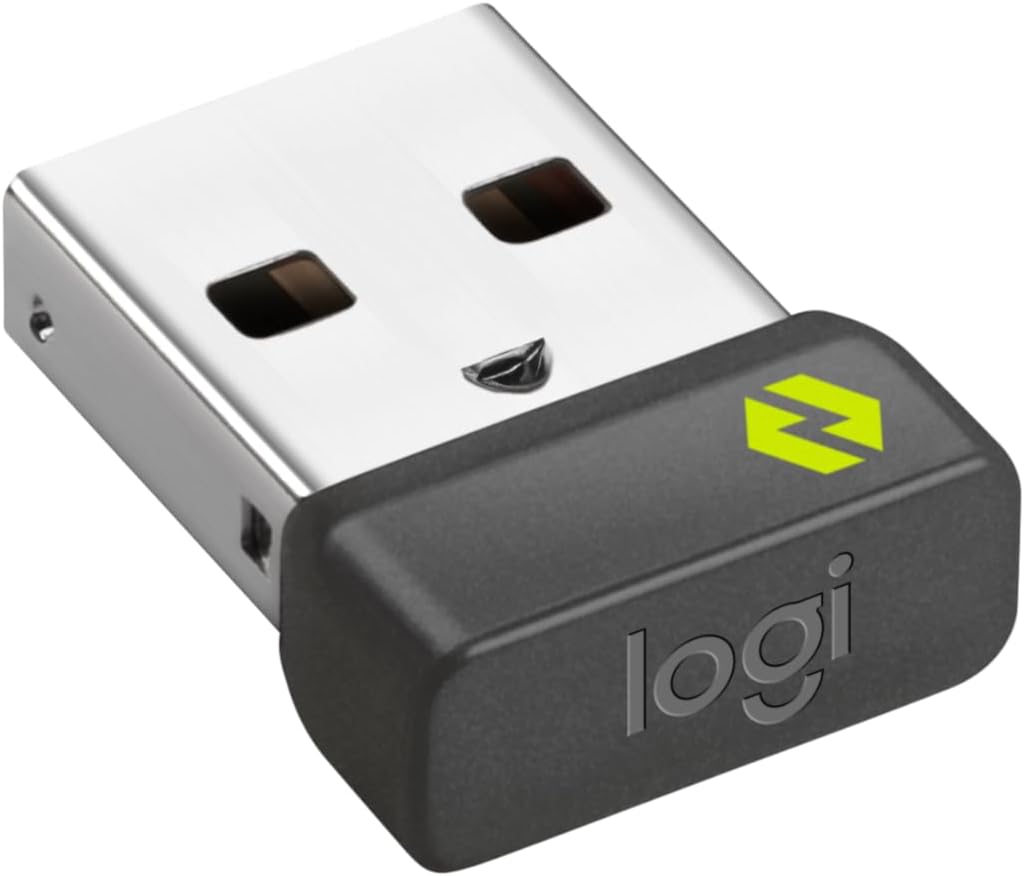
🔌 Unlock wireless freedom with Logi Bolt — your desk’s new MVP!
The Logitech Bolt USB-A Receiver delivers a robust, secure wireless connection with up to 10 meters range, supporting up to six Logi Bolt devices simultaneously. Designed for professionals juggling multiple computers and operating systems, it ensures seamless switching, reliable performance, and clutter-free workspaces. Compact and compatible across Windows, macOS, Linux, and Chrome OS, it’s the essential accessory for a modern, efficient workflow.
| ASIN | B09JL9Y1WS |
| Best Sellers Rank | #258 in USB Cables |
| Brand | Logitech |
| Built-In Media | Logi Bolt USB-A Receiver |
| Color | Graphite |
| Compatible Devices | Desktop, Headphone, Keyboard, Laptop, Mouse |
| Connector Type | USB 2.0 |
| Customer Reviews | 4.5 4.5 out of 5 stars (2,429) |
| External Testing Certification | Não aplicável |
| Global Trade Identification Number | 00097855168283 |
| Item Dimensions | 1.08 x 0.65 x 0.36 inches |
| Item Length | 0.73 Inches |
| Item Weight | 2 Grams |
| Manufacturer | Logitech |
| Mfr Part Number | 956-000007 |
| Model Number | 956-000007 |
| Number of Items | 1 |
| Number of Ports | 6 |
| Package Quantity | 1 |
| Power Plug Type | No Plug |
| Smart Home Compatibility | Not Smart Home Compatible |
| UPC | 097855168283 |
| Unit Count | 1 Count |
| Warranty Description | 1 Year Limited Hardware Warranty |
A**.
Single receiver to connect them all.
Work as expected and all my logitech devices seamlessly connects using this receiver. You need to download Logitech's software tool, in order to connect and configure for it to detect and work. Plus it just goes well with my setup where I have multiple devices hooked up to a kvm switch. No more bluetooth connection hassle and switch. Happy with the purchase!!!
T**P
I decided to change my mouse from Bluetooth to USB for better stability. Be prepared. :)
Once this little Bolt USB receiver is actually paired, it works flawlessly. I switched my MX Master from Bluetooth to the Bolt dongle, and the difference was immediate—way smoother, way more stable, and none of the random lag spikes I’d been quietly tolerating. Five stars for performance. Now… the pairing process. This part felt like Logitech accidentally sent me on a time-travel mission back to 1997. I’ve dealt with IRQ conflicts and jumper pins that made more sense than what happened here. When you switch your MX mouse from Bluetooth to Bolt (Easy-Switch Slot 2 → Slot 1 in my case), Windows pops up a tiny “Click to Pair” window. Cute idea, except the moment you put the mouse in pairing mode… the Bluetooth connection drops. And since you haven’t paired with Bolt yet, you now have no mouse to click the button that pairs the mouse. Beautiful little Catch-22. If you have a wired mouse lying around, that’s by far the easiest route. Just plug it in, click the pairing prompt, and you’re done. But if you don’t… welcome to the workaround. Pro tip before you begin: Before switching your MX mouse into Bolt pairing mode, place your cursor as close to the bottom-right corner of the screen as possible. The pairing popup appears there, and once Bluetooth disconnects you’ll be using Windows’ numeric keypad “mouse,” which moves at the speed of a tranquilized turtle. Here’s how I escaped the loop: Press Left Alt + Left Shift + Num Lock → this turns on Windows Mouse Keys. Your numeric keypad now becomes your temporary mouse. 2/4/6/8 to move 5 to click Use the numpad to crawl your way to that tiny pairing prompt and hit 5. Once paired, turn Mouse Keys off the same way. After that? Smooth sailing. The receiver works exactly as advertised and completely fixes the Bluetooth quirks. Bottom line: The device is excellent. Logitech just designed a pairing method that assumes your mouse is already paired… while you’re trying to pair it. Once you get past that paradox, everything works perfectly. If you’re switching from Bluetooth to the Bolt dongle, don’t give up—just use the secret Windows mouse hack (or a wired mouse if you have one) and you’re golden.
J**N
works great on 2 Macbooks
I have a large monitor with all my USB "things" connected via single usb-c to my macbook, once a while my kids unplug my laptop and plug theirs, no more messing around with 2 keyboards, this just works by having LOGITECH Bolt USB-A Receiver in my monitor note: my macbook keyboard is connected with wire to the monitor, it works the same way
J**N
So much better than trying to use the devices with Bluetooth.
There is an app needed for syncing if not using Bluetooth, but it is worth it because the Bluetooth connectivity leaves things to be desired, however with the bolt sync it just works. Also, it shows the battery life left in both devices which in my opinion is pretty cool. Anyhow, never a problem when I use the dongle and the Bolt software. BE WARNED - the device you have will dictate which of these is appropriate, if your device(s) don't have the bolt symbol on them then you are getting the wrong one. See picture below of what the sync key looks like (just above and to the left of home in the image) for a bolt device that symbol should be on the backside of your keyboard and underside of your mouse.
M**R
Buy one if you are going to purchase used Logitech assessories
This might be obvious but this is called a dongle. It works well. If you go onto EBay to buy a mouse or keyboard used, or even here you are taking a chance it is not coming with a dongle ( the original owner kept it attached to their computer). Save yourself lost time and hassle and buy one.
N**T
Yes, it does work on a NVR (network video recorder)
I posted to Q&A asking if this would work on a NVR for my security camera system and got two answers, one from the seller and the other from the manufacturer, both saying it would not work. However, I purchased it anyway because I believed they weren't understanding my question. Well, I'm glad I did because it works perfectly on both my Dahua and Hikvision NVRs. I did need to first pair the receiver to my MX Anywhere 3S mouse via the Logi Options software on my PC but then I simply unplugged the receiver from my PC and plugged it into the Hikvision then the Dahua NVR and it worked great on both. So, if you're looking for a wireless solution to a similar device, give this a try. I'm very happy with it myself! Update: I've been using this for a few days now and couldn't be happier with it's performance. Such a breath of fresh air, compared to my 2.4ghz mice! One thing I wanted to add but forgot to when I made the video, this Bolt receiver doesn't work on earlier versions of this MX Anywhere 3S mouse. The MX Anywhere 3 and earlier use the Unifying receiver with the orange logo. The 3S uses this Bolt receiver with the Green logo. So, be sure to purchase the correct technology to match your mouse and/or keyboard.
M**E
Lost mine and this worked perfect
I was given a very fancy wireless mouse, but it had no fob. It worked exactly as it needed to, and I am so happy.
M**A
Tired of Fighting to Connect My Mouse
Worked for a while, but after a software update to Logi Options + my computer can no longer detect the Bolt receiver. I only bought the receiver because the MX Anywhere 3S constantly dropped its bluetooth connection. I can't keep asking my IT department to fix this mouse; can't reinstall the software easily because I'm on a managed computer. The receiver also interfered with the computer's ability to use any other non-Logi bluetooth devices. Total waste of money on both products. I've never had issues with basic mouses connecting in the past. I could probably figure out how to get the Bolt reconnected, but I don't have the time to spend continually fighting with products that are supposed to boost productivity, but require constant maintenance and system restarts.
Ö**K
Ürün kaliteli ancak çok geç geldi.
C**N
J'ai acheté une souris Logitech sans avoir bien lu ce qu'il y avait sur la boîte... J'ai dû acheter cet accessoire en plus, ce qui a augmenté le coût... de ma souris... Mais c'est du matériel Logitech, donc d'excellente qualité. Et on peut y connecter plusieurs dispositifs, si j'ai bien compris... Ca ne me servira à rien car je n'ai qu'un seule souris à connecter mais c'est ainsi...
M**A
Semplice USB per unificare alcuni dei prodotti logitech. Attenzione alla compatibilità perché non tutti funzionano.
A**I
يعمل بشكل جيد جدا
B**R
Not working properly. When plugged in pops up an error that the dongle is malfunctioned
Trustpilot
2 months ago
2 weeks ago