


HS610
Product ID: 115258850
Details
- BrandHUION
- Connectivity TechnologyBluetooth USB
- Operating SystemAndroid 6.0 OS
- Pressure Sensitivity8192 levels
- Special FeatureDial Ergonomic
🎨8192 pressure levels
📶Bluetooth 5.0, 33ft range
🔋18h battery life
Desertcart purchases this item on your behalf and handles shipping, customs, and support to Malaysia.
🎨 Elevate your art game wirelessly — create smarter, faster, anywhere!
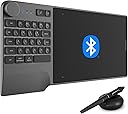
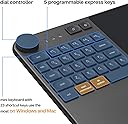
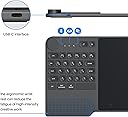
The HUION Inspiroy Keydial KD200 is a wireless drawing tablet featuring Bluetooth 5.0 connectivity with up to 33ft range, an 8.9x5.6 inch active area, and a battery-free pen with 8192 pressure sensitivity levels and 60° tilt support. It includes 23 programmable shortcut keys, a customizable dial, and 5 press keys to enhance workflow efficiency. With an 18-hour battery life and ergonomic design, it’s compatible with Windows, Mac, and Android devices, making it a versatile tool for artists, designers, and professionals seeking portable, high-precision digital creativity.
| ASIN | B0935ZXGRJ |
| Active Surface Area | 8.9 x 5.6inch |
| Additional Features | Dial, Ergonomic, Huion PenTech 3.0, Programmable Press Key, Wide Compatibility |
| Best Sellers Rank | #115 in Computer Graphics Tablets |
| Brand | HUION |
| Built-In Media | Battery-free Pen, Pen Holder, Pen Nib x 10, Nib Clip, Bluetooth Receiver, Glove, Pen Tablet KD200, Quick Start Guide, USB-C Cable, USB-C Adapter |
| Color | Metal Grey |
| Compatible Devices | Desktop, Laptop, Smartphone, Tablet |
| Connectivity Technology | Bluetooth, USB |
| Customer Reviews | 4.4 out of 5 stars 1,148 Reviews |
| Display Type | No |
| Item Dimensions L x W | 15.53"L x 7.39"W |
| Item Type Name | computer graphic tablet |
| Item Weight | 1.4 pounds |
| Manufacturer | ShenZhen Huion Animation Technology Co., LTD |
| Mfr Part Number | Inspiroy Keydial KD200 |
| Model Name | Inspiroy Keydial |
| Model Number | KD200 |
| Native Resolution | 1920x1080 |
| Operating System | Android 6.0 and higher, Mac OS 10.12 and higher, Windows 7 and higher |
| Pressure Sensitivity | 8192 levels |
| Screen Size | 9 inches |
| Special Feature | Dial, Ergonomic, Huion PenTech 3.0, Programmable Press Key, Wide Compatibility |
| Specific Uses For Product | Drawing, Painting, Writing, Teaching, Gaming, photo, video editing, Animation, Designing |
| Target Audience | Art Student, Artist, Designer, Editor, Teacher |
| Unit Count | 1 Count |
| Warranty Description | 1 Year warranty |
G**F
Amazing Drawing Tablet!
I really love this Tablet! The price is so affordable for what you get. I used to use a very old Wacom Intuos 3 6x8. This is really a upgrade for me. I just got it and have been using it for Comic freelance line work in Clip Studio here is what I have so far: The Good stuff: -Pressure and Tilt function overall performance ( I could be wrong but this is a difference for me. I also used a drawing old drawing monitor Yiynova without tilt function. Which had pressure but no tilt recognition so I went back to my Wacom intuous 3). -Light weight Pen allows me to draw for a longer time. It feels very ergonomic on the hand/wrist. -Driver was really easy to install and worked right away. -The wheel is cool and express keys function well (I use the keyboard mostly) -Really nice design looks great and is slim for portability. Small issue: - The Work Area had to be adjusted for me.. I made it a little shorter on the right side (Cuts off at the start line of the #15 soft key at the top right). I found that when I draw on the right side my hand hits the edge of the tablet when you run out of real estate. Default work area is longer horizontal wise than I am used to working on (I worked on intuos 3 6x8). I draw with the tablet on my lap with the back of the top resting on a tables edge. So this might be just my issue than something universal. I included my adjustment in a image if anyone was interested and might want to try it. This doesn't impede work at all there is more than enough drawing space after. I really LOVE this drawing tablet. Thank you Huion! Keep up the Amazing Work :D
T**B
Excellent Value, Great Functionality
Excellent, cost-effective graphics tablet. Arrived on time and in new condition. I did quite a bit of research on various brands of graphics tablets before making this purchase mostly because I’m cheap and also because I planned to use the tablet for photo retouching in Photoshop. Also, I've never used a graphics tablet before. Well, right out of the box this tablet did not disappoint. Setup took less than 5 minutes. I didn’t stay with the built-in device driver Windows 10 applied on connecting to the tablet, I also downloaded and installed the latest driver from Hunion which allowed full configuration of buttons, etc. The rubber grip on the pen is great, the pressure/lateral sensitivity of the pen-tablet combination is excellent; my signature looks exactly like when I use a pen or pencil. This is likely because I'm using the smaller muscles in my hand and fingers for control instead of whole hand and forearm as with a mouse. The surface of the tablet has a slightly roughened texture, feeling similar to paper, and I find that a positive. I was happy to see that the tablet surface does not activate from touch like a PC touchpad. This allows me to rest my hand on its surface while editing and not have my hand movement control the cursor or execute some command. I experienced an immediate improvement in editing control on a couple of test photos during my first hour of use. Although the pen and tablet are taking some getting used to. I had no sense of anything 'cheap' or ‘inferior’ about this tablet. A tip for some notebook users who don't plan to slide this unit into and out of a computer bag: I attached four small, adhesive-backed rubber pads (maybe 3/8” thick) near the very thin rubber pads on back of the tablet. This elevates the tablet above my notebook keyboard and places the tablet directly below my screen. Through careful definition of the tablet and pen button commands this seems to work pretty well for me, but time will tell. Overall: an excellent starter tablet for a newb like me and one that provided real savings over some other brands. Enjoy!
U**E
Nice tablet with a few minor issues.
This is my first tablet I've ever owned and actually used. About 10 years ago, I tried a Genius tablet for a short time, with a disastrous outcome. Before that, I used a digitizer with AutoCAD for many years until the mouse supplanted those. My need for the tablet was solely for picture editing for websites, at first. There's just an unnatural feeling when using a mouse that seems to reduce efficiency. So I figured I'd try a tablet. After much late night searching and review reading, I settled on the Huion HS610. Build quality - it's a tablet, plastic body, fairly light weight, seems well constructed. First the price point, I have no issues here. Pen - I'm not gonna lie... it took some getting used to for not having used one (successfully) before. Within about 3 hours I went from doodling car wheels, car wheels doing burnouts, comic faces, to actually a rather generic comic scene of a guy disappointed because his computer wouldn't turn on (yeah, an image I saw on a YouTube video that i took some artistic liberties with). My point with the above paragraph is this - if someone with my limited experience using a tablet can do this in a short period of time, then others WITH experience should have no problems using this tablet. It's a different world from pencil and paper, no doubt. In learning to use the tablet, I also discovered Krita - not that it was ever lost, I just had never heard of it. An OUTSTANDING art application, but, I digress... Pros: Inexpensive Fairly easy to learn to use Drivers appear to be mature, no nissues there Semi textured surface Easy to use on a desk or on a lap Works very well with Krita, Illustrator, Photoshop, and Windows 10 pen apps. The pen - battery not included or required. Assigning the left side keys is easy, and they are a blessing. Cons: Have yet to see the tilt function work - at all, in any application. The 16 softkeys appear to not work in Krita, haven't tried in Photoshop yet. Meh issues: The roller - in zoom mode, only seems to work in 'zoom out' mode in Krita. 'Scroll' mode in Krita, the wheel works for zoom in and zoom out. Go figure. Keep in mind, I haven't adjusted the drivers much, other than reassigning a couple shortcut keys. Recommedation: Yes, I would recommend this tablet. It's a really nice tablet, minor issues aside. My 13 year old daughter took right to it, quicker than I did. It's a great beginner to mid-range tablet at a great price.
L**E
Love this tablet.
I’ve had this tablet for well over a few years now and as expected from Huion it’s been great. Unfortunately it’s had a lil wear and tear because of a few certain fur babies who can’t keep off of it but I still am happy with it. It got a few scratched on the screen, wish I had ordered a screen protector at the time for it but might look to find another tablet from this brand soon. My current one has been amazing though.
M**T
Overall I really like this drawing pad
So here are my 2 cents after using this for few weeks now. I purchased this to work with my MacBook Pro. It has been my experience that this product has not worked very well with iOS system (I'm on Catalina); however we also have a windows laptop in the household and it works great with windows! I am disappointed it doesn't work well with my MacBook as windows is technically not my laptop; I also have everything saved and synced to iCloud so I prefer all my files to be in one spot... It glitches in the way that it's impossible to set shortcut key settings (vs on the windows laptop), the point moves independently of pen movement. I did download correct deriver for mac from their website. I was very disappointed a first as was going to return the product till I tried it on windows laptop. All functions work and I love drawing with it. I especially love the zoom wheel (which can be customized for your personal functions; I use it to increase the size of the brush). It's very very convenient. Wheel is a little touchy but does work. The shortcut keys are also convenient and I used it basically w/out the need for the keyboard. I use it with Adobe Photoshop for drawing. Pen and pad can be connected via bluetooth but it occasionally loses connection with the dongle but automatically reconnects. I am very happy using it otherwise.
S**N
The future standard of drawing tablets
Pros: 1. Bluetooth function is excellent. I don't know how much more it costs, but this is way superior to a USB-A toggle. My laptop has only one USB-A port, and I want to save it for something else. 2. The pen is arguably better than the other pens I used. I like the soft pad and shape of the pen. But your mileage may vary. 3. Keyboard. It is not friendly to lefty, fortunately I am a righty. The keys are comfortable to type, and it provides much more functionality compared to only 6/8 shortcuts. No complain at all. 4. Software is generally responsive and function really well. 5. The pan function is working well, and the first time I saw it being this smooth on drawing tablets. Cons: 1. There is no place to put the pen and tablet together when carrying around. The other tablets that I used has a cloth ring-like slot to put the pen in. It is inconvenient to bring the pen in a separate location. 2. The pen/eraser switch function is not working as smooth as other tablets that I used. I have no idea the mechanism of this, I thought this is a build-in function in Windows to toggle pen/eraser. Never thought that this will go wrong. It works, not great. 3. The dial function is too restricted. At least I would appreciate left/right function, which is missing.
S**E
Really like this tablet and it was a breeze to set up
Since you know I like it I will put the cons up front. 1) It doesn't have a tracing sheet/ cover sheet. The only real drawback with that for me is you cant print out a cheatsheet for the soft buttons. You can stick some stick on labels but that is kind of funky. 2) the pen does not have an eraser. Not a biggie for me but I know it would be a deal breaker for some. 3) it doesn't arrive with the tilt function working. You have to email support and they will send you a link to the firmware tool that you need to update the firmware to enable tilt. And the tool only works in Windows. I'm Mac so... However I had so many things that had firmware this and that that had no way to update on Macs that I bought one of these really cheap pc's that plug into a monitor just to solve that issue. Probably something like parallels would also work fine, but the cheap PC was cheaper than parallels so I went that way. 4) the pen holder is not weighted so it's, well, light. The tablet itself is very sturdy and well made. Installation was just running the setup software. Compared to installing Wacom drivers it was a breeze. It is a lot more responsive than my old tablet. An admittedly old Intuos2 9X12. The old one was huge and really too big, plus the drivers were hanging on by their teeth. I could have knocked a 1/2 star off for not having a way for Macs to natively update the firmware. This is an incredibly good tablet for the price. This will be my fourth or fifth tablet and this is by far the best one I have used. And the one it replace probably cost 10 times as much as I paid for this one.
N**G
Quick keys on pen and tablet glitch. Do not recommend.
I've been using this tablet for work for over a week anywhere from 8-12hrs/day for basic illustration and cleaning up pixels on scanned images. The tablet itself is okay. It scratches easily despite light pressure being used. Also, the nib on the pen has a sharp spot which further scratches the pad if you aren't paying attention. My biggest frustration is that although I've programmed the pen several times to pan left and right, it does whatever it wants. Sometimes using the quick keys on the pen will change the number of pixels for the brush. Sometimes it minimizes the entire program (absolutely frustrating when this happens because it leaves a huge streak across your image since your pen was engaged in writing). Sometimes it changes the brush you're using. Long story short, the pen quick keys function is junk which is a huge inconvenience because that means every time you want to pan one direction or another, you have to break flow and use the mouse. Most quick keys on the tablet seem to program and work just fine and come in super handy. The one issue is with the large ZOOM in and ZOOM out buttons on the left. Sometimes they work, sometimes they don't. Sometimes they zoom, and sometimes they do some random function. The whole kit is buggy. If I could go back in time, I would have gotten a tablet from a different company. For now it gets by with what I need it for until I decide on another tablet. I don't return things online because it's often a hassle so I didn't bother asking for a refund. I'll just be aware not to buy this company again and recommend to friends to purchase a different brand.
K**M
Graphics Drawing Tablet
I like it but i had trouble downloading the app
J**O
Excelente!!
Uma mesa que atende muito bem! Botões de atalho muito util! Recomendo!
A**R
Nice
This is very professional. I also like the keys which copy themselves onto any program. The zoom knob did not work on GIMP and the brush size doesn't like it either. The program that you use it on makes drawings with this easy. But some of the cheap programs ... I am still trying to find a way for the tilt to work. The tablet is beautiful and although it connects without downloading the driver, YOU MUST download the driver. In my Windows 11, this is my 'pen' to go along with my 'mouse'. It is built in as a standard input. Note for all the newbies. You need to spend monthly subscriptions to get the best programs. It isn't cheap.
T**J
best for note taking
very good for note taking and teaching
T**L
ممتاز
المنتج مطابق للصورة و المواصفات و وصل في الميعاد و بحالة ممتازة
Trustpilot
3 weeks ago
1 week ago