We remain fully operational. Our teams are working around the clock to ensure your deliveries continue safely.

下载应用程序


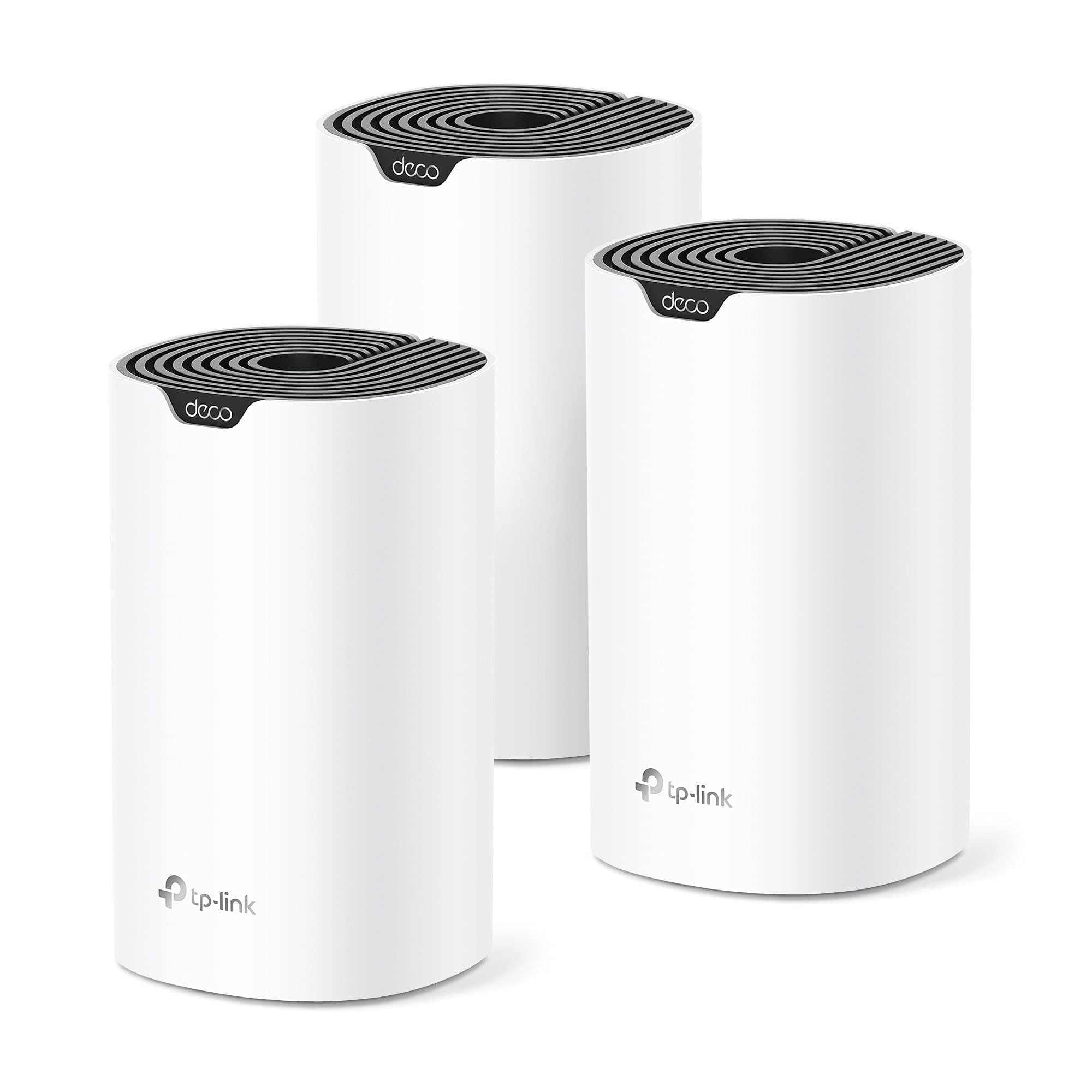
🚀 Mesh Your Home Into the Future of WiFi

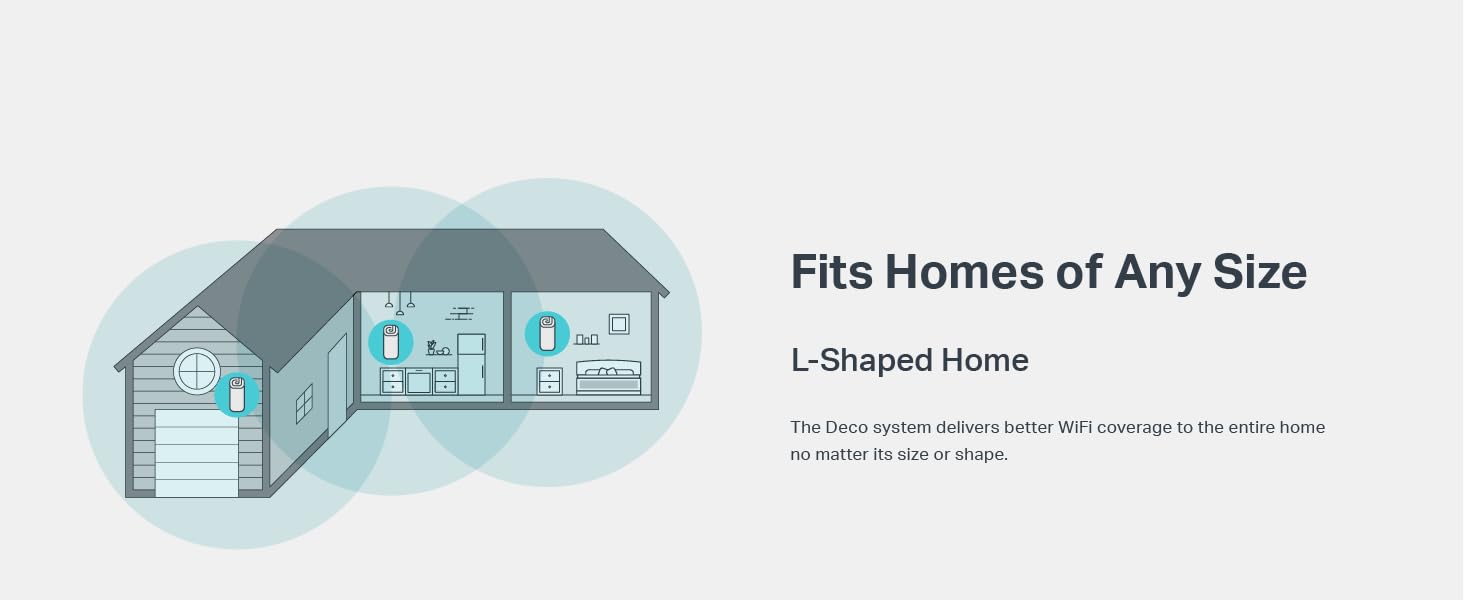
The TP-Link Deco S4 Mesh WiFi System (3-pack) delivers expansive, seamless WiFi coverage up to 5,500 sq.ft with AC1900 dual-band speeds and 6 gigabit Ethernet ports. Designed for easy setup and smart home compatibility, it supports over 100 devices with stable, fast connections and advanced parental controls, making it the ultimate solution for large homes and demanding digital lifestyles.













| ASIN | B084GTH5LL |
| Antenna Location | Home |
| Antenna Type | Internal |
| Best Sellers Rank | #81 in Computers & Accessories ( See Top 100 in Computers & Accessories ) #8 in Whole Home & Mesh Wi-Fi Systems |
| Brand | TP-Link |
| Built-In Media | Deco S4 (3-pack) 3 Deco S4R Units 1 RJ45 Ethernet Cable 3 Power Adapters 1 Quick Installation Guide |
| Color | White |
| Compatible Devices | All WiFi Enabled devices |
| Connectivity Protocol | ethernet, wi-fi |
| Connectivity Range | 5500 Square Feet |
| Connectivity Technology | Ethernet, Wi-Fi |
| Control Method | Voice |
| Controller Type | amazon_alexa, vera |
| Coverage | 5500 square feet |
| Customer Reviews | 4.5 4.5 out of 5 stars (29,238) |
| Data Transfer Rate | 1200 Megabits Per Second |
| Frequency | 5 GHz |
| Frequency Band Class | Dual-Band |
| Is Modem Compatible | No |
| Item Dimensions L x W x H | 3.57"L x 3.57"W x 6.39"H |
| Item Type Name | Whole Home WiFi System |
| LAN Port Bandwidth | 1000 Mbps |
| Manufacturer | TP-Link |
| Maximum Upstream Data Transfer Rate | 950 Megabits Per Second |
| Mfr Part Number | Deco S4(3-Pack) |
| Model Name | Deco S4(3-Pack) |
| Model Number | Deco S4(3-Pack) |
| Number of Antennas | 9 |
| Number of Ports | 6 |
| Operating System | Linux |
| Other Special Features of the Product | Access Point Mode |
| Security Protocol | WPS |
| Smart Home Compatibility | Smart Home Compatible |
| UPC | 840460605014 845973089726 |
| Unit Count | 3.0 Count |
| Voltage | 12 Volts (DC) |
| Warranty Description | 2 year manufacturer |
| Wi-Fi Generation | Wi-Fi 5 |
| Wireless Compability | 802.11ac |
D**S
TP-Link Deco S4 (3-pack) – Finally killed every dead spot in my 4,800 sq ft house for under $130
I live in a 1970s two-story brick house with plaster walls that eat WiFi for breakfast. My old ASUS router + extender setup left me with zero bars in the master bedroom, garage, and back patio. After fighting it for years, I grabbed this Deco S4 3-pack on a Prime Day deal for $119 and it’s been flawless for the last 14 months. Coverage & speed Placed one in the basement office, one on the main floor, one upstairs hallway Full bars everywhere now – even the detached garage 70 ft away pulls 180 Mbps down on 5 GHz Real-world speeds: 450-550 Mbps next to a node, 220-300 Mbps in the farthest corners (on a 500 Mbps fiber plan) Zero buffering on four 4K TVs streaming at once + two kids on Fortnite + my WFH Zoom calls Dead-simple setup Took 12 minutes total with the Deco app (literally plug in, scan QR code, done) Seamless roaming – phone/laptop walks from basement to backyard without dropping a single YouTube frame Guest network, parental controls, and QoS actually work and don’t require a PhD Reliability 14 months uptime, zero reboots needed Survived two 4-hour power outages (units just come back online when power returns) Runs cool and silent (no fans) Only two tiny gripes No dedicated backhaul band (it’s AC1900 tri-band in name only – shares 5 GHz for clients and backhaul), but with wired backhaul option or good node placement it’s never been an issue No USB port or fancy features, but I don’t care when it just works For $119-140 the 3-pack is stupid cheap compared to Eero or Nest (which I tried and returned). If you have a big house, thick walls, and just want rock-solid WiFi that you never have to think about again, buy these before the price goes back up. Already convinced three neighbors and my parents to ditch their old routers for the exact same kit. 10/10 – best money I’ve ever spent on networking. My WiFi problems are officially dead and buried.
M**4
Works perfect
I bought this because I was having issues with my wifi being slow and constantly buffering from all the devices I have and it fixed my connection problems it's no longer slow and it was really easy to set up and I have good coverage all around the inside and outside of the house.
S**.
Easy setup, works great so far.
Works great! I have a long house, so the signal gets a bit spotty at the ends, and this is a (relatively) inexpensive way to get WiFi throughout the home. I plugged in the Ethernet cable to my ISP modem/router combo for one of them, and the other two I just plugged the power cord into the wall. The set up was easy - just used the QR code in the instruction booklet, set up the WiFi name and password the same as my home WiFi, and it was pretty seamless. The devices needed a couple of updates, and that took a couple of minutes, but other than that, setup was quick.
C**N
Great product, but has some issues
*** 1 Year Review Update *** I decided to keep the system. After a few firmware updates and once TP-Link fixed the AP only mode such that the main and guest networks are truly separated I switched over from using it as a router to an AP solution. It has worked flawlessly since and without any performance degradation's. I still do not like the app-centric approach for "management" (cannot call it that honestly); insight would probably be more appropriate. But, I will be moving in the future to an enterprise grade solution (this solution purchase has just been a stop-gap until that time and I finalize my network architecture). For the average home consumer that is not very tech-savvy (which is the audience this product really targets) it is overall very simple to get up and running with very few issues, especially at this price point. I have submitted over a dozen feature requests to TP-Link and almost all of them have been discarded by the manufacturer (but at least acknowledged); of the ones that were "accepted" they were very trivial. As of today, Sep 21 20201, the system via the app is no longer able to check for updates (it receives an error). I believe this is not due to the units themselves but instead TP-Link's update portal that the units use to check for updates. Checking on the main site reveals an update published on July 15 2021 (S4 2.0_en_1.5.0 Build 20210607 Rel. 56436_US_EU_AU_JP_up.bin) that is available which is one update newer than my currently applied firmware published on September 30 2020 (S4 2.0_en_1.4.3 Build 20200918 Rel. 77820_US_EU_AU_JP_up.bin). Looks like I will have to update the units manually using the download links provided by TP-Link and by logging into the web UI (note: each unit will have its own web UI but one - the master - will show a different one by showing you the topology of the mesh; a manual firmward update can be applied using that unit). = Summary Overall this is a great product. It definitely addresses the WiFi coverage in our new home. It has only been a few days since I set them up. However, a star in my rating had to be knocked off which will become evident shortly. I may update this review after some more time has passed. But it is currently appearing I might be returning this. I operate these in access point mode and not router mode. I have a better router than what these units provide and do not need double NAT'ing on my house wide network. That, and, I will be replacing the house wide router with a substantially better one anyway in the coming months. This review, however, covers my utilization and experience in both modes. Also note that I am an IT professional and deal with network infrastructure (along with many other things) day to day for over 20 years. In this review the term “satellite” is used to denote a Deco unit that is not the main Deco unit. I have intentionally saved the worst points of my review as the last section. = Topology Setup I have fiber to the premise gateway, still with the gateways’ Wi-Fi fully enabled on both 2.4Ghz and 5Ghz bands. My home is over 2,650 sqft, single story, built this year, with gigabit Cat5e cables to each room the Deco S4 units are situated. All Deco units use the Ethernet backhaul. All Cat5e runs and cables have been tested to support gigabit speeds point-to-point (with of course the obligatory TCP/IP overhead). Placement wise each of the Deco units are almost in a straight line, a function of my floor plan and where I need Wi-Fi coverage the most. Relative distances between Deco units: - 25 linear feet between first satellite and second, main Deco unit with one interior door between. This I refer to as satellite 1. - 45 linear feet between second satellite and main Deco unit with 3 interior only walls between. This I refer to as satellite 2. = Performance The throughput performance on these is fantastic, especially at the price point. I have fiber gigabit Internet service. I use speedtest.net for all bench marks. I get the following throughput on a Samsung Galaxy Note 8 (US), stock firmware, latest software and security patches. Distance is always the distance between my test device and a specific Deco unit and with line of sight between the test device and the target Deco unit. | Deco | Distance | Downstream | Upstream | Satellite 1 | 1 ft | 344 | 392 | Main | 1 ft | 446 | 389 | Satellite 2 | 1 ft | 460 | 392 | Satellite 1 | 3 ft | 279 | 422 | Main | 3 ft | 485 | 409 | Satellite 2 | 3 ft | 392 | 383 | Satellite 1 | 6 ft | 355 | 350 | Main | 6 ft | 477 | 390 | Satellite 2 | 6 ft | 483 | 461 | Satellite 1 | 9 ft | 361 | 475 | Main | 9 ft | 482 | 374 | Satellite 2 | 9 ft | 477 | 466 | Satellite 1 | 12 ft | 385 | 460 | Main | 12 ft | 451 | 458 | Satellite 2 | 12 ft | 501 | 528 | Satellite 1 | 15 ft | 445 | 389 | Main | 15 ft | 461 | 453 | Satellite 2 | 15 ft | 500 | 432 | A 15 foot distance between a Deco unit and a connected device is most likely acceptable considering average housing room sizes. However, in my house floor plan, I have an easy 25 foot line of sight from the main Deco unit to where I did a test. Results came in as 251 Mbps downstream and 117 Mbps upstream. Still, highly acceptable. At my maximum floor plan range to that same Deco unit and still maintaining line of sight of 33 feet I wind up getting an unexpectedly impressive 493 Mbps downstream and 388 Mbps upstream. While I cannot check in the app to see specifically which Deco unit my test device was connected to due to either app or overall product system issues, I am left with only one avenue of explanation: the Deco system has successfully performed link aggregation for my test device. If, in the first place, I am correct in this very poor conclusion due to the lack of data, then, this is indeed impressive and can very well be THE single most discriminator in overall product performance vs issues vs cost. I realize these performance tests are not representative of real world scenarios. Fact is, most people do not go to such lengths to test their products and relevant environments, much less describe their environments. When a little more time goes by I will update this review with more realistic real world performance tests in terms of longer distances and obstructions. = The Good I do not need parental controls, so, access point mode removes that for me, thankfully. Because I operate this in access point mode not having quality of service on the Deco's is just fine as is not having DHCP handled by the Deco's. Again, my current infrastructure handles all of these elegantly and more than sufficiently. In order to get a proper pass off while going from one end of the house to the other I had to enable fast roaming. Without enabling this resulting in unbearably long hand offs from one unit to the other based on proximity to units. The net result of this was severe performance degradation. This seems to work without issue and solved the hand off issue. The app is straightforward to use and easy to understand, ranging from initial installation to adding additional Deco's to day to day activities. The app also provides notifications of new devices when they are added to / detected on the network (both in router and access point modes). As expected you can define a main Wi-Fi network and a guest network. This is standard fare. You can select if you want both 2.4GHz and 5GHz bands active or be more selective. Again, this is standard fare. You can rename connected devices in the app. Useful especially when connected devices do not allow you to set their DHCP host name. The units try to profile a connected device type (e.g., Phone, PC, etc) in which the result of this is also easily accessible via the app. But, when it cannot or gets it wrong you can override this in the app, very useful feature indeed. The app will also show you basic information such as allocated IP address, MAC address (wish it was in colon delimited notation and not hypen as the former is the standard representation for MAC addresses), connection type (main or guest network and frequency band) and which Deco unit the device is currently linked to. Unfortunately you cannot get the same level of information regarding devices connected to the guest network. Having visibility into this is just as important to give you another data point in your connected IoT devices. Oh, yeah, I suppose that people visiting your home is good too. Regardless, it is utterly unclear whether or not connected devices on the guest network have visibility to one another (e.g., can see each other), and much less have any reach into the main Wi-Fi or rest of your network. At a minimum, the default of any guest Wi-Fi network should be nothing can see anything else on the guest Wi-Fi , cannot see the main Wi-Fi, cannot see the rest of your network and can only see the Internet. Any Deco unit can serve as the main. In router mode, this means that the main unit has routing capabilities. Likewise, a different unit can be specified as the main via the app. = The Bad There is no white listing of devices, only a black list. Security best practice is white listing devices that are authorized for access. Having only a black list is unacceptable. It is on this ground alone these units may very well be returned. It escapes me why TP-Link would fail to include the ability to white list. Since this product seems to be targeted to the less network technologically bound than myself I can understand why only a black list is available (to prevent the less technologically adept folks from effectively locking themselves out). However, not including a white list capability does an injustice to everyone and is, security wise, shameful and puts consumers’ home networks at additional unnecessary risk of exploitation. Yes, using a white list to winds up meaning having to go through a little more trouble to allow a new device onto the network. For me, and every other IT security professional out there, white listing is an essential tool in the security posture arsenal and is one that should never be omitted. The only firmware release is the initial firmware release: Deco S4(US)_V2_191023 from December 25, 2019 (TP-Link support site). In the Deco app it reports no new updates for the firmware with a current version of 1.1.5 Build 20191023 Rel. 67285. Unzipping the firmware release on the support site shows the same firmware version as the app shows (specifically: S4 2.0_en_1.1.5 Build 20191023 Rel. 67285_US_EU_AU_JP_up.bin). Half a year later I would expect at least an additional firmware release. While not having any could be a good thing, generally, this is never the case. There are always bugs and vulnerabilities in every piece of software, and, firmware is no exception. Clearly a firmware update is needed at least to add a white list feature. There is a barely usable web UI for the Deco's beyond that of just using the Deco app. I have found a landing page for each Deco connected to my router via the IP assigned to each. All UI's require authentication. The UI is different depending on which Deco you connect to. The Deco's that are not the main Deco provide the following features: update the firmware, pull the system log or reboot. Accessing the system log allows you to save it, email it or clear it. In contrast, connecting to the UI for the main Deco yields a subset of the features compared to the app but adds visibility into the units' CPU and memory usage. Said subset of features are mainly read only via the interface, again, not very useful. Thus there is no real point in using anything but the app if one is looking for access to more robust features. Connected device presence status (online / offline) is wholly inaccurate as reported by the app. The only connected devices that are accurately reported for presence are those that have not left the Wi-Fi range and not power cycled. For example, all of my Fire TV sticks show as being online but all mobile devices that left the Wi-Fi range now show as offline despite being back within Wi-Fi range of the units for several hours. Even manually refreshing the view still yields in the app reporting these same mobile devices as being offline. More testing still needs to be performed, but, there is no reason why the device list status page in the app is this inaccurate. Bandwidth utilization by connected device in the device list is great to have. The only problem is that it too is completely inaccurate to the same degree as mentioned previously regarding connected device presence status. For those devices that actually show as being online the bandwidth utilization shown in this same view is always 0Kbps up and downstream. Since installation of the units I have yet to see this populated and have seen, once, and only once, a single connected device bandwidth utilization being reported if I select the said device in the list. There is no ability to perform a wireless site survey. There is no ability to use 802.11x. From a network management perspective there is no way to rename a specific Deco in terms of the host name that it will present to the rest of your network. All units show up simply as "deco-S4" from DHCP. Not useful. There is no way to designate the guest network LAN IP address range. = The Ugly Initial set up was in router mode, the default. Setup of main and satellite 1 Deco’s went flawlessly and took but a few minutes per. Meanwhile, satellite 2 refuses to join the mesh in router mode and always leaves me staring at a red blinking light. The app reports “Unable to add these Decos” and “Move these Decos closer to a Deco that you’ve already set up, then tap TRY AGAIN.” Why would anyone have to move a Deco unit closer to another? They have an Ethernet backhaul, and by definition, can communicate with each other! Meanwhile, the engineer within me takes a different stance: while all Deco units indeed have a gigabit Ethernet backhaul each unit must be able to verify a minimal Wi-Fi signal level from its closest neighbor. And, since I am a customer facing type of person that voice inside of me would scream: in order to assure the best possible experience please ensure all Deco units have no physical obstructions between them and that none are surrounded by things that can block radio frequencies such as metal and concrete. Point is, I have yet to get all three Deco units online in router mode at all. It is NOT an option to bring any units closer together. Satellite 2 Deco has been power cycled and reset (via the reset button on the bottom of the unit) half a dozen times per with precisely the same results. Now, putting the system into access point mode results in a perfectly usable system without any of these problems. Wish I knew why. Regardless, this is a telltale sign to me of poor engineering. Of course, switching system modes from router to access point (or vice versa) results in the system rebooting all Deco’s. The majority of most modern residential Wi-Fi capable routers do not require a reboot when making this change. This is so problematic that it is cause, alone, for me to return the product.
D**N
TP-Link is just great
Need wifi because your router is hot garbage? Look no farther, this can extend your reach of your router to Narnia, it really works, the setup is quick and easy, the app will walk you through it quickly. Overall extremely impressed by this product
M**A
Fué sencillo de instalar, me tardé aproximadamente 1 hora en todo el setup, los equipos se conectaron rápidamente, incluso la impresora wifi con conexión wps fué sencilla de configurar y trabaja muy bien. Equipo excelente en el área de oficina apenas me llegaban 8-9 Mbps (con un repetidor) ahora tengo de 90-100 Mbps, mi computadora principal (una viejita Asus de 2012) a cada rato se caía el wifi y ahora está estable, también pude configurar mi streaming de música desde la oficina hasta la sala dónde se encuentra el Deco router y trabaja muy bien sin cortes.
M**H
Recently purchased the TP-Link Deco S4, and I’m seriously impressed. It delivers consistently fast Wi-Fi speeds across every corner of my 4-bedroom double story house—no more dead zones or frustrating dropouts. Setup was a breeze, and the mesh system handles multiple devices without breaking a sweat. Highly recommend if you're after reliable whole-home coverage without the hassle. Great value for performance!
L**M
El Deco TP link funciona perfecto para crear una red estable en casa. Gran cobertura
L**G
My home has 3 floors, and this works so well. Setting up was a breeze. And it looks aesthetically nice as well!
L**R
Tenía problemas no solo con la extensión de la señal Wi-fi sino que era inestable y mientras más lejos del módem principal, más lento se hacía, además de que solo me permitía conectar a red de 2.4hz, Intente con repetidores baratos que solucionaban espacios muertos pero no velocidad pues disminuía notablemente además de que tenia que escoger la red manualmente, no solo eso, además había problemas con el resto de dispositivos por conflictos de direcciones IP, en fin era un fastidio, ahora con los Deco solo deje esa red y en toda la casa hay señal intensa, estable y se nota sobremanera con los dispositivos que se pueden conectar a la red 5g la red es más rápida que con el router nativo (al máximo de banda ancha de mi proveedor, no más) , es una solución casi perfecta. Llevo una semana con ellos. ACTUALIZACIÓN NUEVE MESES DESPUÉS, la mejor compra que he hecho en definitiva, mi red rápida y estable como el primer día de configurar.